Building Forms
Translating form content
Translate respondent-facing content, review source changes, and publish each language without losing sync with the form version respondents see.
How translations work
formbase separates the source language from each published translation. Your form content stays authored in the source language. Each translated language stores only the translated fragments for that form: question titles, options, content blocks, placeholders, email copy, and other respondent-facing strings.
Translation rows are tied to stable block ids and source-text hashes. When you edit the source text later, formbase can tell which translations are still current, which are missing, and which need review.
Source language does not auto-translate your custom content
Setting the source language localizes formbase’s built-in UI. It does not rewrite labels, help text, options, custom thank-you content, or custom emails that you authored. Use the translation editor for those. See Language setting for source-language and respondent-language behavior.
Translation editor
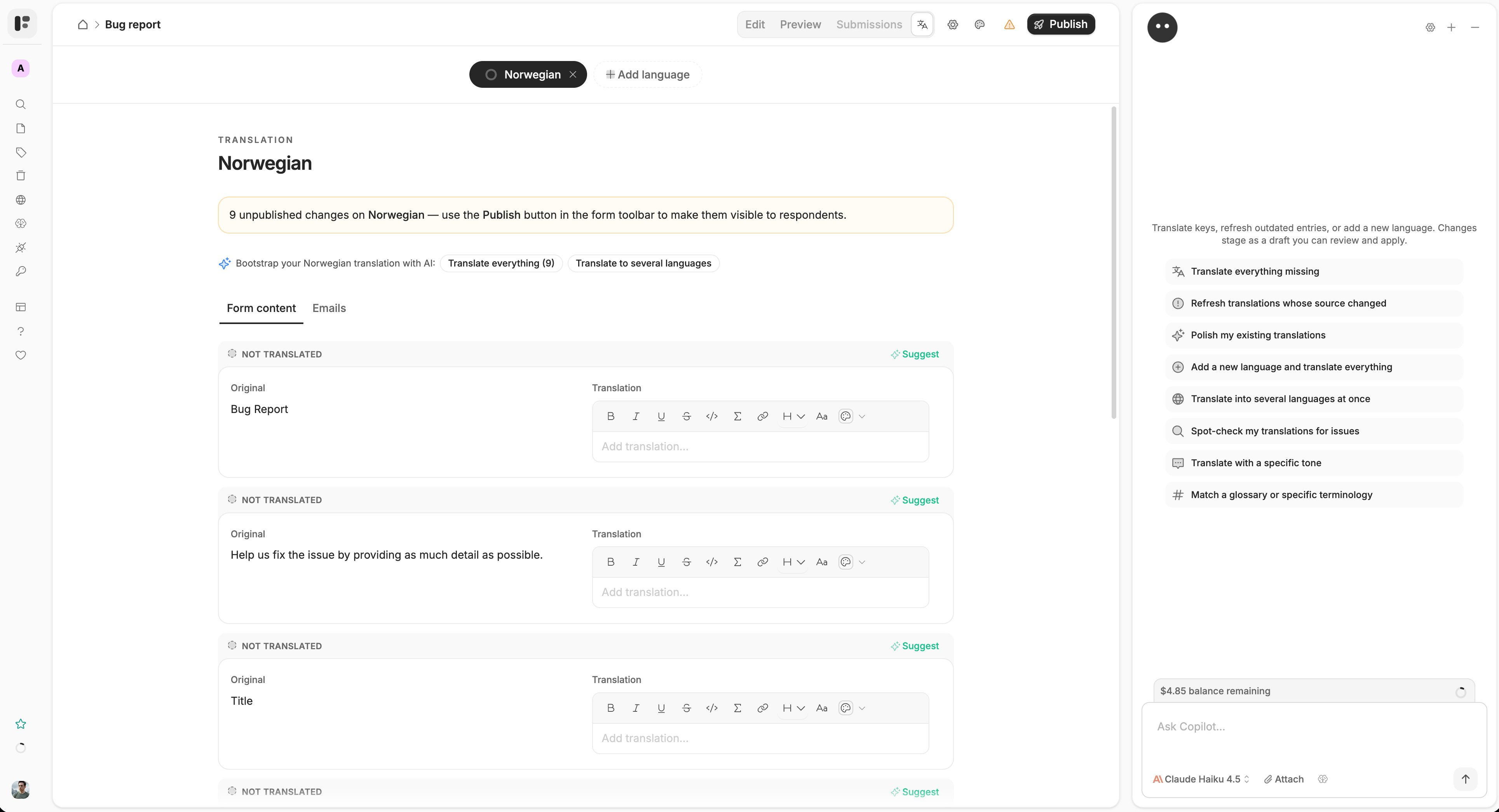
Open a form and click Translate in the toolbar. Pick a language, then translate each row manually or ask AI to draft a suggestion. Each row shows the Original, the Translation, and a status. Two tabs split the work: Form content and Emails. Changes save as you type.
Add a language
Click Add language and pick one from the list. Any of the 65 languages formbase supports can be added except the form’s
own source language, and each language can be added once. The four regional variants — en-GB, es-MX,
fr-CA, pt-BR — are separate entries, so pick one when wording, formatting, or legal copy differs by market. See
supported languages.
Right-to-left languages
Arabic, Hebrew, Persian, Urdu and the other right-to-left languages can be added like any other. The respondent form and the generated PDF lay themselves out right-to-left for them.
What you can translate
- Headers, paragraphs, lists, tables, and other text blocks
- Question titles, descriptions, placeholders, scale labels, matrix labels, and choice options
- Image captions and custom thank-you content
- Custom respondent confirmation email subject/body
- Custom abandoned-response reminder email subject/body
What is not translated
- Hidden fields and calculated fields as standalone fields
- Uploaded files, signatures, and respondent answers
- Integration payload destinations such as table names, database names, or webhook URLs
The event title and location on a Cal.com scheduling question, such as “Cal Video”. They come from Cal.com, so rename them in the Cal.com event type
- Custom source-language email text when no translation exists for that respondent’s language
Field references stay intact across translations. If an email says Hello @Name, the translation should keep the field mention
and translate only the surrounding text.
AI translation
Use AI for first drafts, not blind publishing. The translation page offers quick-action chips that change with the state of the language you have open, and each row has its own Suggest / Re-suggest button.
Translate … missing — after adding new questions. The chip names the count.
Refresh … outdated — after rewriting source copy.
Translate everything — bootstrapping a language from scratch.
Polish translations — when translations are literal but need native phrasing.
Spot-check for issues — a review pass over what is already there.
Translate to several languages — run one language’s work across the rest.
AI writes into the row as a suggestion, not a saved translation. Accept or decline per row, or use Accept all / Decline all in the toast. Keep product names, legal terms, and glossary terms consistent across rows.
Translate in review-sized batches
Translate one language, review the most important pages and email copy, then publish. For high-stakes forms, have a native speaker review legal text, consent language, and payment-related copy before publishing.
Translation statuses
| Status | What it means | What to do |
|---|---|---|
| Up to date | Translation exists and matches the latest source hash. | No action needed unless you want to improve wording. |
| Not translated | No translation exists, or the translation is blank. | Translate manually or ask AI to fill missing rows. |
| Outdated | Source text changed after the translation was saved. | Use "Show previous version" to compare, then update the translation. |
| AI suggested — review | AI staged a draft but it has not been accepted yet. | Review, edit if needed, then accept or decline the suggestion. |
| Invalid reference | The row mentions a field that no longer exists on the form. | Fix the mention, or click "Mark as valid" if the text is correct as written. |
Above the rows, each language carries a completion badge counting how many rows are complete, missing, and outdated.
How formbase keeps translations in sync
The translation editor builds a live source manifest from your current form and email settings. Each manifest row has a stable translation key and a hash of the source fragment. This lets formbase update translation status without guessing from plain text.
- 1
You edit source content
New rows appear as missing; changed rows become outdated; unchanged rows stay current.
- 2
You save translation drafts
Drafts save as you type, but respondents do not see them yet.
- 3
You publish
Published bundles are copied from the draft for each language and added to the respondent language picker.
- 4
formbase snapshots the publish
Each published form version stores a frozen translation bundle so old submissions and PDFs can render the exact language version the respondent saw.
Field reference checks
Email translations can include @ mentions that pipe respondent answers into the message. If you delete or rename a field that
a translated email still references, formbase flags the stale reference before you publish.
- An inline warning appears below the affected email translation row.
- The publish indicator flags the stale reference so you can fix it before shipping.
The same reference checks apply to source email templates and integration message templates in notification settings.
Drafts and publishing
Translations are draft-first. Respondents only see a language after you publish it. Publishing an empty language removes it from the respondent language picker.
Publish after source copy is stable when possible. If you rewrite source copy after translating, use the outdated status to review only rows that changed instead of re-checking every row.
Missing or blank translations
Missing strings fall back to the source language for that specific row. Respondents never see blank labels because one translation entry is empty. This makes it safe to publish incrementally, but mixed-language forms can feel unfinished, so review the completion count before shipping.
Emails and PDFs
Translations carry beyond the on-page form.
Respondent confirmation emails use the translated custom subject/body when the respondent submits in a translated language. If no translated custom copy exists, formbase uses the default localized template instead of sending the source-language custom copy to a non-source respondent.
Abandoned-response reminder emails use the respondent’s saved language and the translated reminder subject/body when available.
Attached submission PDFs are generated from the same translated form content the respondent saw, including labels, options, page content, and RTL layout where applicable.
Owner PDF downloads can render against the frozen translation bundle for the submitted snapshot, so old downloads do not silently change after you edit and republish translations.
Submission language is preserved
formbase stores the respondent language with the submission. Later emails, PDF generation, and re-renders can use that language even if you publish new translations later.
Practical translation tips
- Keep source copy short before translating; concise labels reduce localization drift.
- Translate button-like choices as actions, not word-for-word nouns, when the target language needs it.
Check variables and
@mentions after AI translation. They should stay present and in the right sentence position.Preview the form with
?lang=xxbefore sending localized links.- Submit one test response per important language when emails or PDFs are enabled.
- Republish after accepting AI suggestions; accepted suggestions are still drafts until publish.
Free on every plan
Every plan includes the translation editor. AI-assisted suggestions use AI credits — see AI credits & usage.