Guides · AI agents
Build a form with an AI agent
You describe the form in plain words; the agent builds it in your workspace as a draft and gives you a preview link. You ask for changes the same way, and publish when it looks right.
Last checked
You need an AI tool with formbase connected. The prompts below are the ones this guide was tested with; any wording works, as long as it says what to ask and whether to publish.
1. Describe the form
Name the form, list what it should ask, and say that it stays a draft for now:
Build a formbase form called "[Guide] Supplier onboarding". Ask for the company name, a contact email, the company's VAT number, and whether they accept our 30-day payment terms (yes or no). Keep it as a draft and send me the preview link.The agent creates the form in the workspace you connected, adds one question at a time, and reads the form back to check the order. It picks a question type for each item: an email field for the contact email, a single choice for yes or no. When it is done, it replies with the questions it added and a preview link.
2. Open the preview
The preview link shows the draft as the recipient will see it, and it follows the agent’s edits live, so keep it open while you ask for changes.
The same form is in formbase under Forms, where you can open it in the editor and change anything by hand. What the agent builds is an ordinary form.
3. Ask for changes
Say what to change in the same conversation, naming the questions by their titles:
Make the VAT number optional and add a file upload for their certificate of incorporation at the end.The open preview shows the change as soon as the agent makes it:
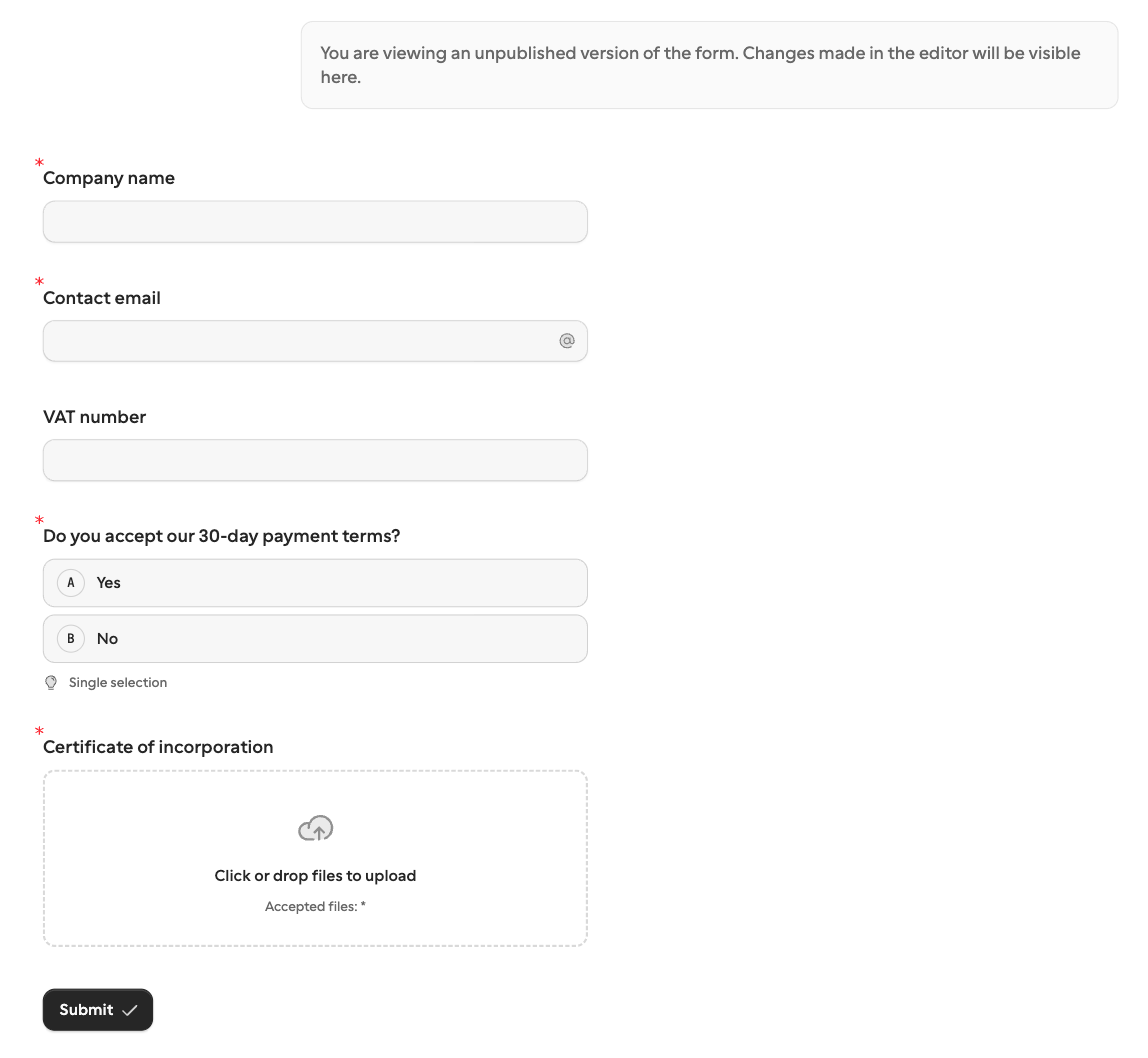
Most of what you set in the editor, you can ask an agent for: required or optional, a description, choice options, conditional logic, the theme, translations. For long forms, ask for one part at a time and check the preview in between.
4. Publish and get the field keys
When the preview looks right, ask the agent to publish:
Looks good. Publish it, give me the link to share, and list each question's field key.The agent publishes the form and lists the field keys. The first publish always creates a share link anyone can open, and the agent gives it to you. An agent reads the keys from the published form, so asked before you publish, it says it cannot list them yet.
Each key comes from the question’s title: Company name becomes company_name. Keys are how a request prefills a
question and how the answers come back, and they stay the same when you later rename a question.
An agent cannot choose a key. To shorten a long one, edit it in the editor’s
Keys table, best before the first publish, while no automation uses it yet.
Publishing makes the form live
Once published, anyone with the share link can submit the form. To take answers only from named people, ask the agent to revoke the share link and send requests instead.