Guides · Zapier
Act on a request's outcome
This guide builds a Zap that emails your team when a recipient answers an approval request, with their decision in the subject line. A filter then limits it to approvals.
Last checked
You need a formbase connection in Zapier and requests to act on, sent from a Zap as in Send a request from a Zap or from anywhere else: the dashboard, the API or an agent. To branch on a verdict, the form needs a Decision question.
1. Pick the trigger
Create a Zap, choose formbase as the trigger app, and search for Request:
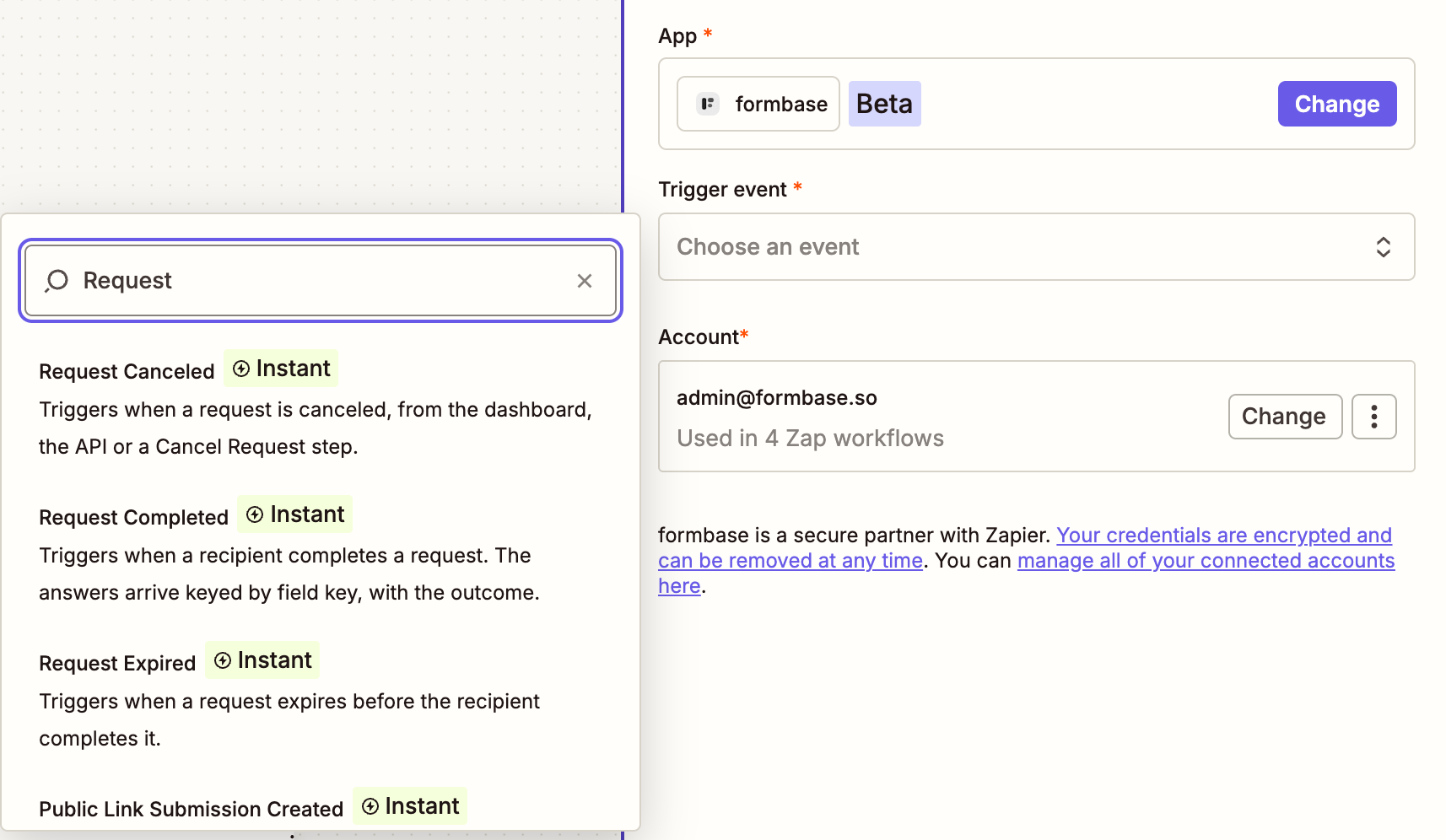
| Trigger | Fires when | Carries |
|---|---|---|
| Request Completed | The recipient submits the form. | The request, the outcome and every answer. |
| Request Expired | The request reaches its expiry date unanswered. | The request only. |
| Request Canceled | Someone cancels the request, from the dashboard, the API or a Cancel Request step, or formbase cancels it because the form was moved to trash. | The request and the cancel reason. |
Pick Request Completed, pick your account, and choose the form. The Zap fires for requests to that form only.
2. Test the trigger
Click Test trigger. As with public link triggers, Zapier loads a sample built from the form’s questions, so you can map fields before any request is completed:
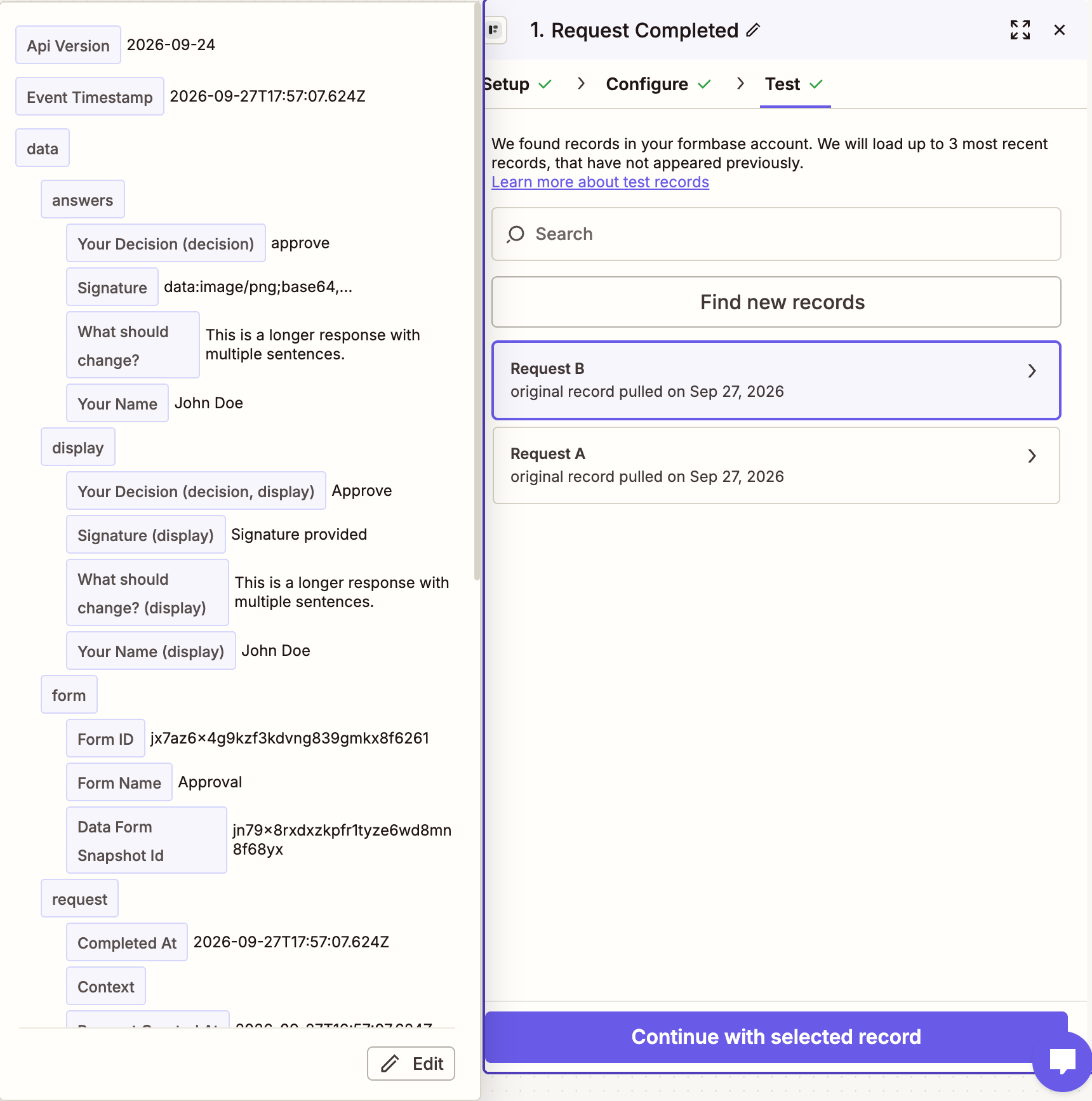
Where a field key reads differently from its question title, the label names the key in parentheses.
Your Decision (decision) is the answer whose field key is decision, and a mapped field shows it as
Data › Answers › Decision.
Besides answers and display, a request event carries a request group:
Recipient Email, Recipient Name, Request External ID, Metadata and Context: what you set when you created the request. Use the External ID to find the record the request was about.
Outcome:
approve,declineorchanges, the recipient’s answer to the Decision question. On this form it is the same value as Answers › Decision, because the Decision question’s key isdecision. Outcome is missing when the form has no Decision question.
Every field is described in the callback payload; Zapier receives the same event.
3. Map the action
Add the action. This guide uses Email by Zapier › Send Outbound Email, with the recipient’s name and their decision in the subject and the External ID in the body:
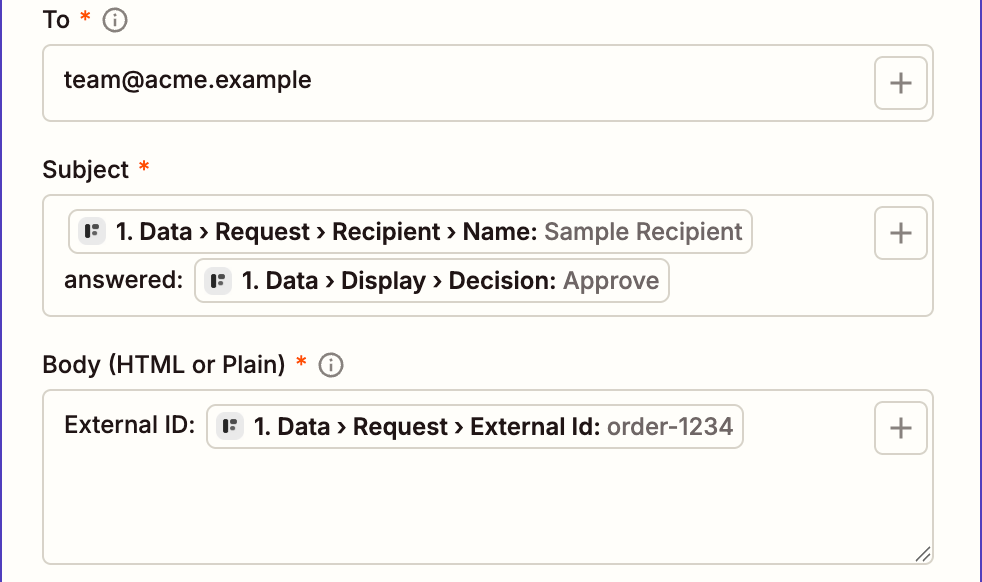
Publish the Zap. When the recipient completes the request, the email arrives with a subject like Ada Lovelace answered: Approve, and the run appears in Zap history.
4. Continue only on approval
To act on one verdict only, add a Filter step between the trigger and the action. Set it to continue only if
Data › Answers › Decision exactly matches approve:
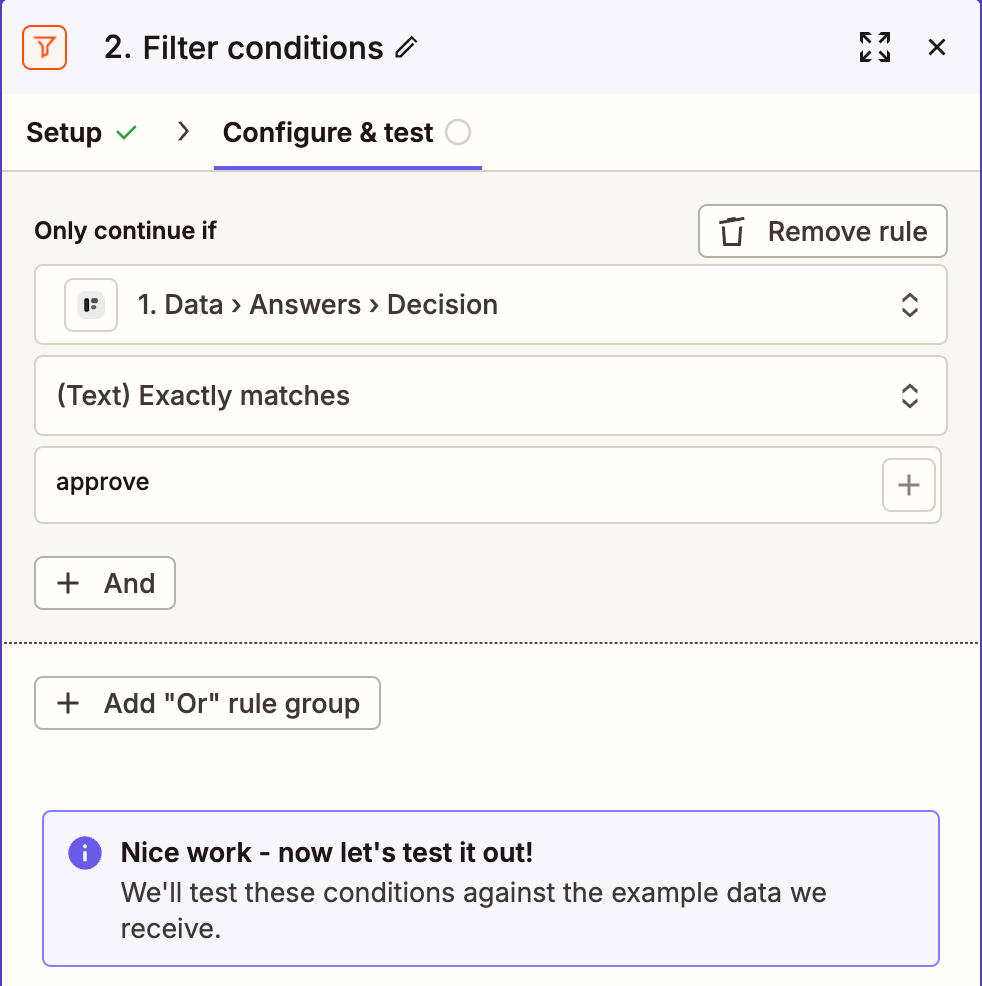
The Decision question’s field key is always decision, so Data › Answers › Decision has the same name on
every form. Data › Request › Outcome holds the same value.
Compare with the value from answers, not the label from display: the label changes when you rename the option or the recipient answers in another language, the value does not. To handle each verdict differently, use Paths instead of a filter, one path per value.
Filters and Paths need a paid Zapier plan
A Zap with a Filter or Paths step has more than two steps, and Zapier’s Free plan publishes only two-step Zaps. On Free, keep the trigger and one action, and branch in the app the action writes to.
If the Zap does not start
It was a test request. A request created with Test Request on, or with Try it yourself, never starts a Zap. Only its callback fires. Send a real request to check the Zap.
The request was for another form. The trigger listens to the form you chose in step 1.
The Zap is off, or uses a connection to another workspace. See the checks in the public link guide.