Getting Started
Build your form
A form is the design: the questions you ask and the way they look. Publishing it is what makes it usable — as a request sent to one person, or as a public link open to everyone. This page gets you to a published form.
Publish in four steps
The editor works like a document. Type where you want text, and press a key to add a question.
- 1
Start a new form
Open Forms in the sidebar and click Form, top-left. Or go to app.formbase.so/try to build one without an account.
- 2
Add questions
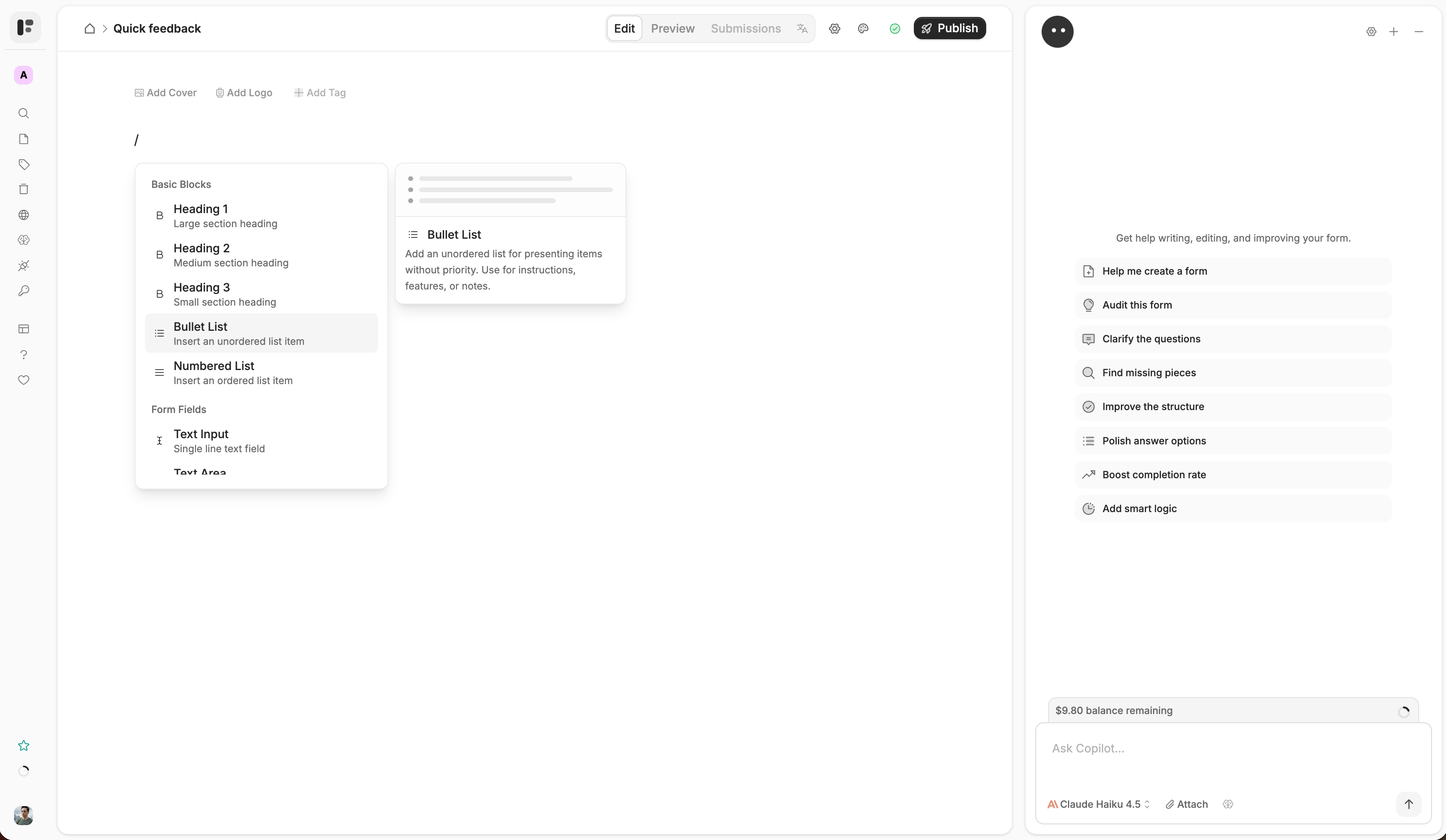
Click in the editor and press / to open the block menu. Pick a question type, type the label, and hit Enter. Drag the handle on the left to reorder.
- 3
Preview
Click Preview in the toolbar to walk through the form exactly as the person answering it will.
- 4
Publish
Click Publish (top-right). The form goes live, its field keys freeze, and a Share button appears in the toolbar — it is only there once a form is published.
Safe to experiment
Edits autosave as a draft. Your live form keeps the last published version until you publish again.
What publishing does
Publishing is not only “make it visible”. It fixes three things you will rely on later:
Field keys are frozen. Each question gets a stable name like
company_namethat automations address it by, and that name stays the same through every later edit. Field keys →A version is snapshotted. Anyone answering keeps the version they opened, even while you keep editing the draft. Every plan sees the publish history; reverting to an earlier version is Pro. Version history →
Both channels open. The Share sheet switches between a Public link channel and a Requests channel, and the form’s first share link is created for you.
Other ways to start
Templates — open Templates in the sidebar for 19 ready-made forms in six categories. AI — open AI chat (bottom-right) and describe what you need. See Using AI.