Getting Started
See answers arrive
A request and a public link collect into the same place. Here is that place, how to be told when something lands, and how to push it into the rest of your stack.
One inbox, both channels
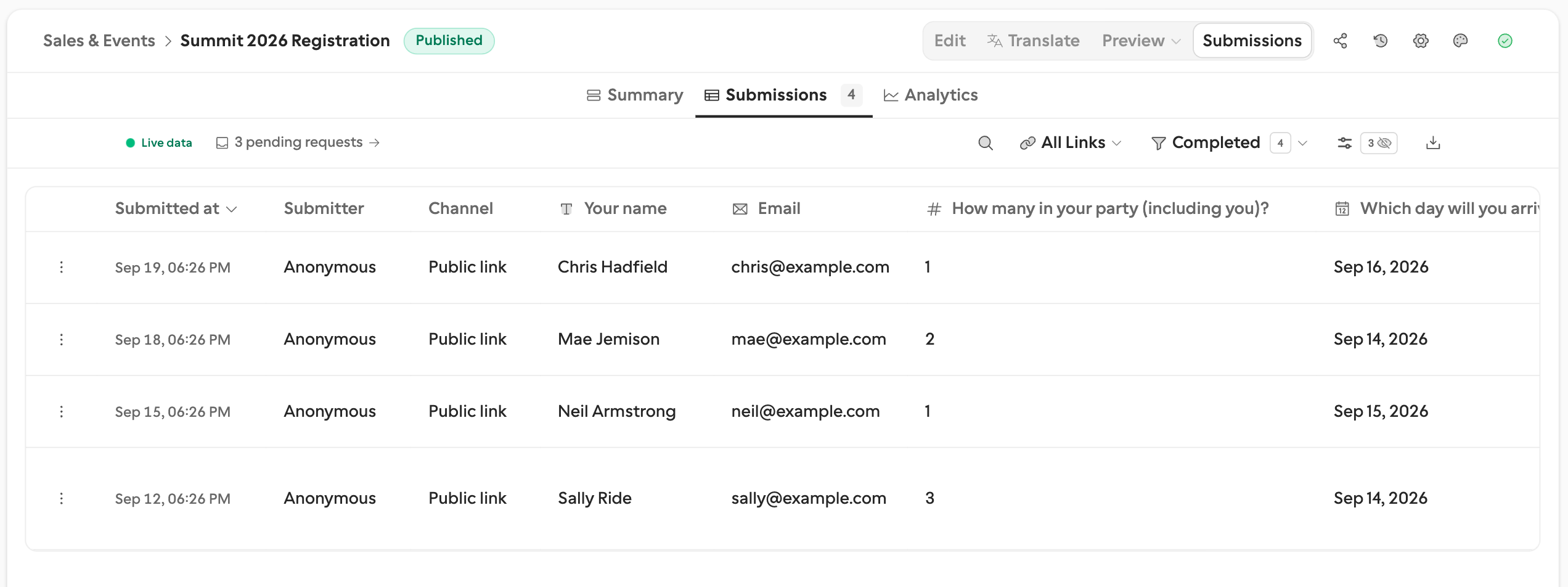
Open the form and click Submissions in the top toolbar. It opens on the response list; every answer is here, whoever it came from, and the Channel column says which channel each one arrived through:
| Channel | Meaning |
|---|---|
| Public link | Someone opened a share link and answered. You did not know in advance who they were. |
| Request | The named recipient of one request answered it. The row links back to that request. |
The test request you answered is not here: a test submission is stored on the request, but kept out of the inbox, the counts, exports, and your integrations. The public link you answered is.
The same toolbar button has three views:
Summary — per-question charts and breakdowns.
Submissions — the full response list, with search, filters, and Download as CSV or Download as Excel.
Analytics — completion funnel, devices, and traffic sources, filterable by channel (Pro).
See submission inbox for the full walkthrough.
A request also has a page of its own
The inbox holds the answers. The Requests page holds everything around them: who has not opened yet, what you prefilled, which reminders went out, and whether the callback was accepted. The answers are in the inbox; the state of the request is on the Requests page.
Get notified
Open Settings → E-mail Notifications and turn on Notify on new submission. Your own address is filled in for you. This works on Free, no upgrade needed. On Pro, you can add more recipients and write your own subject and body. See self-notifications for details.
Want the person who answered to get a confirmation too? Turn on Send confirmation to respondent (Pro) from the same panel. On a request, it goes to the recipient you named. See respondent notifications.
Route answers onward
Notifications tell a person. These two tell a system — and which one you want depends on the channel:
Integrations fan every submission out as it lands. Connect Google Sheets, Notion, Slack, Airtable, Discord, Linear, GitHub, or a signed webhook from Settings → Integrations. Sheets, Notion, Airtable, and Linear also sync past responses when you connect them.
Callbacks belong to one request. Instead of “a submission happened”, your workflow is told “the request you were waiting on ended”, with the answers keyed by field key — and it is told on expiry and cancellation too. Callbacks & signing →